How to Edit Text in a PDF for Free (Step by Step)
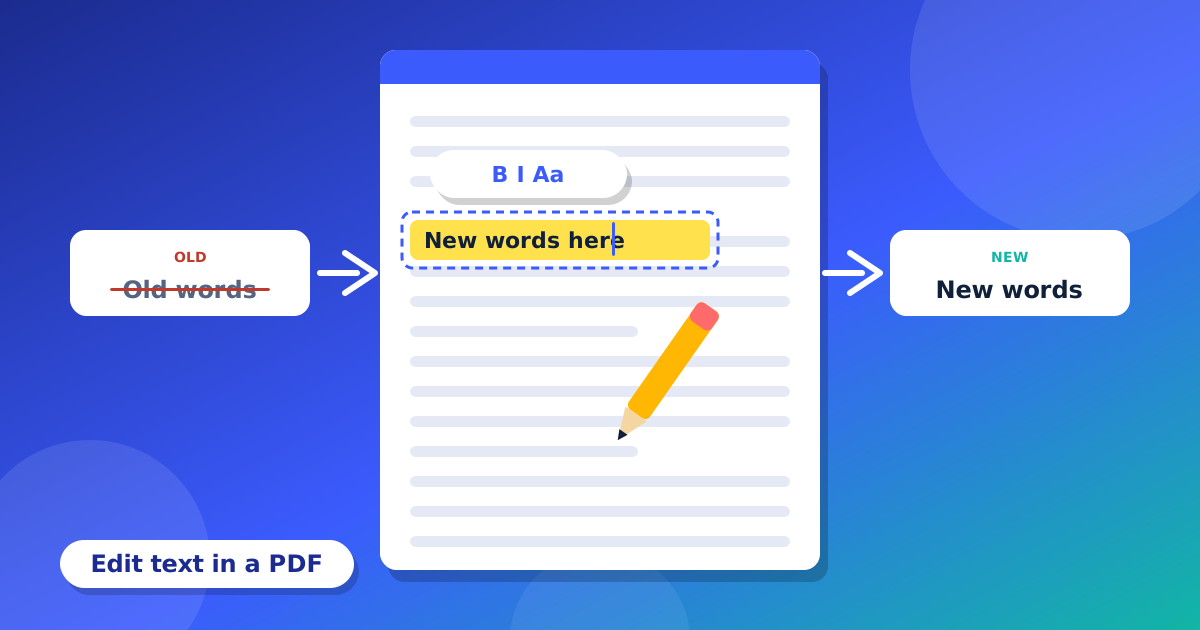
Have you ever found a small mistake in a PDF? Maybe a wrong name, a wrong date or a wrong phone number. You cannot just click and type like in a Word file. But you can fix it for free with a PDF editor online. You do not need to install any app. This guide shows you how, step by step.
Why is it hard to change a PDF?
A PDF is made to look the same on every phone and computer. To do this, it puts each word in an exact place on the page. It does not know about paragraphs like a Word file does. So a normal PDF reader can only show the words. It cannot change them. A PDF editor is a tool that can.
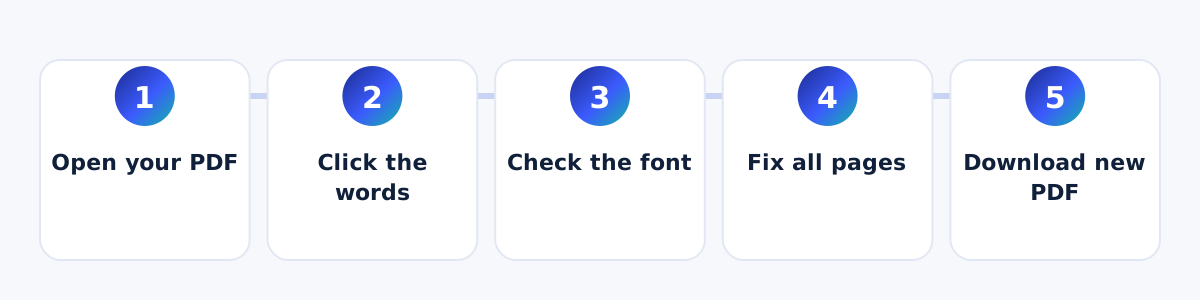
Step 1: Open your PDF
Go to the PDF Editor. Press "Choose PDF file" and pick your file. It opens in your browser. Your file is not sent to our servers.
Step 2: Click the words you want to change
Click on a line of words. A dotted box shows which line you picked. Then press "Edit text", or double-click the line. Type the new words. If you want to remove the line, use "Remove text".
Step 3: Check the font
In the edit box, you can choose "Original font". This keeps the look of your page the same. Sometimes the original font does not have a letter you typed. Then the editor uses a font that looks close. Zoom in and check the result.
Step 4: Fix all pages at once
Is the same word on many pages, like a name in the header? You do not need to fix every page. Pick the word, type the new one, and press "Replace on all pages". We also have a short guide for this: how to change a date or name on all pages of a PDF.
Step 5: Download your new PDF
Press "Download PDF". You get a new file. Your old file stays the same, so you can always go back to it.
Tips for a clean result
- Change short lines. Each line is edited by itself, so very long text can be hard to fit.
- Try to use about the same number of letters as the old words.
- Zoom in and look at the page before you download.
- Use the undo button if you make a mistake.
- A scanned PDF is a picture. You cannot edit its words. Cover the old part with a white box and type on top.
- Only edit files that are yours, or files you have permission to change.
Want to work on your phone? Read our other guide on how to add a signature to a PDF.
A real-life example
Sara made a price list for her small shop and saved it as a PDF. The next day, the price of rice went up. She did not have the first Word file anymore. She opened the PDF in the editor, clicked the old price, typed the new price, and downloaded the file. It took less than two minutes. She did not need a new app or a new account.
Common problems and easy fixes
- The new words look different. Try the "Original font" choice. If it does not help, pick a font like Helvetica, which looks clean on any page.
- The new words are too long. Make the font size a little smaller, or write fewer words.
- I cannot click the words. Your PDF may be a scan. A scan is a picture, so use a white box and type on top.
- Some letters show as boxes. The font does not have those letters. Pick another font from the list.
- I changed the wrong line. Press the undo button. You can undo many times.
Questions and answers
Do I need to make an account?
No. You can use the editor without an account.
Is the first file changed?
No. You get a new file when you press Download. Your first file stays the same.
Can I edit a PDF on my phone?
Yes. The tools are in a bar at the top. You can slide it left and right. The edit options come up from the bottom.