How to Turn Photos into a PDF on Your Phone
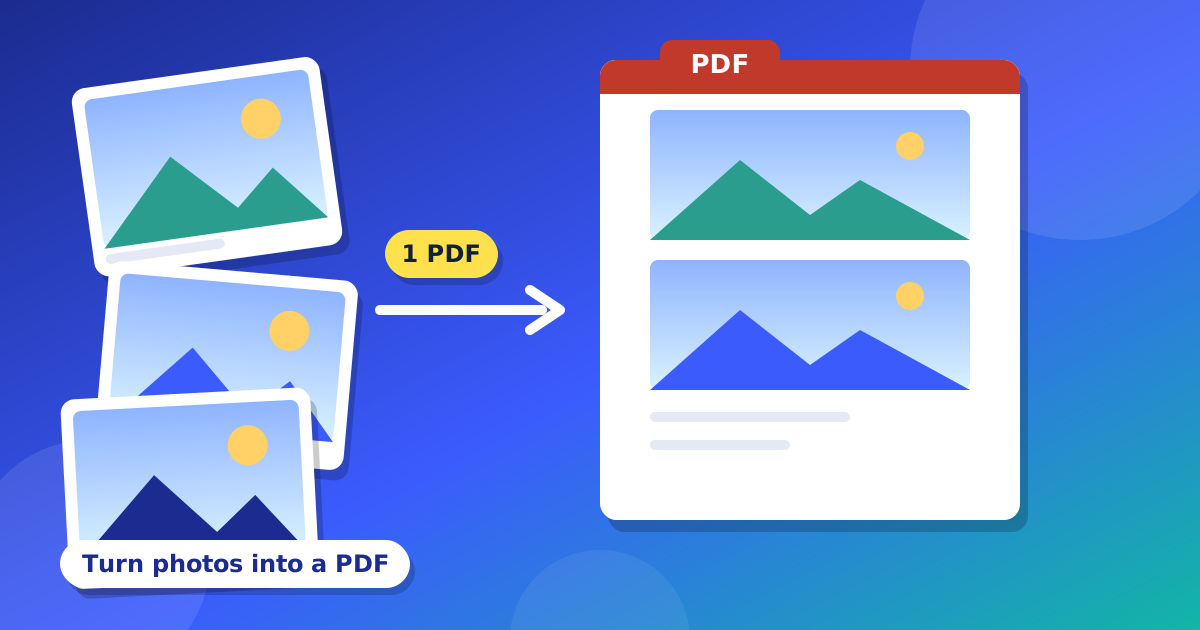
A form asks for a PDF, but you only have photos. Or you took pictures of your homework and want to send them as one file. This guide shows you how to turn photos into a PDF for free, right on your phone.
Step by step
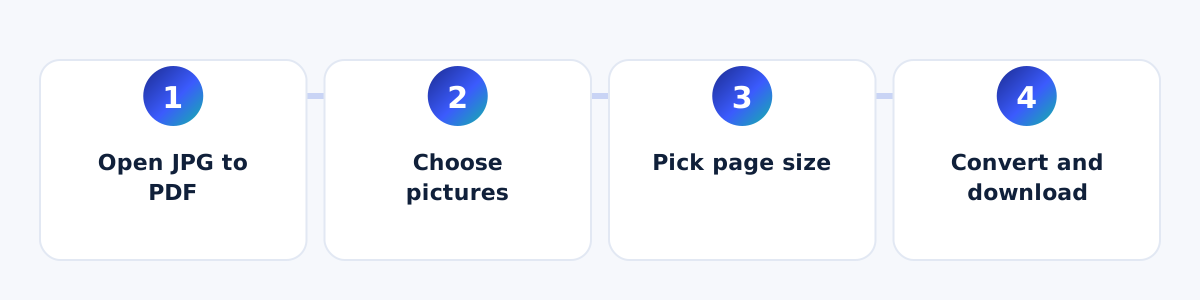
- Open the JPG to PDF tool.
- Press to choose your pictures. You can pick many. JPG, PNG and WEBP files work.
- Choose "Same as image" or "A4" for the page size.
- Press "Convert to PDF" and download your file.
How to get better results
- Take photos in good light, with no shadows.
- Hold your phone straight above the paper.
- Pick the pictures in the order you want the pages to be. The PDF follows that order.
- Turn any sideways photo before you convert.
- Cut away the extra table or floor around the paper.
Which page size should I pick?
"Same as image" makes each page the size of its picture. "A4" puts each picture on a normal paper size. Pick A4 if you want to print it.
Is it safe?
Yes. Your pictures are changed into a PDF inside your browser. They are not sent to our servers. This is good for photos of IDs and bills.
What next?
You can now fix or sign the file. Read how to add a signature to a PDF.
When do people turn photos into a PDF?
- To send homework to a teacher as one file.
- To apply for a job or a school, when the form needs a PDF.
- To send ID card photos, front and back, in one file.
- To keep old papers and bills in one place.
Common problems and easy fixes
- My photo is sideways. Turn the picture and try again.
- The words are hard to read. Take the photo again in better light and hold your phone steady.
- The pages are in the wrong order. Choose the pictures again in the right order.
- The PDF file is very big. Photos from new phones are big. Use fewer pictures in one file, or take them with a lower quality setting.
How to take a good photo of a paper
Put the paper on a flat table, with a plain dark background if you can. Turn on a light, or sit near a window, so there are no shadows. Hold the phone straight above the paper, not at an angle. Wait one second for the camera to focus, then take the photo. Look at it and zoom in. Can you read every word? If yes, you are ready to turn it into a PDF. If not, take it again. Good photos make a good PDF.
Questions and answers
Which pictures can I use?
JPG, PNG and WEBP.
Can I put many photos in one PDF?
Yes. Choose all of them together.
Is it free?
Yes. It is free, and your photos stay on your device.